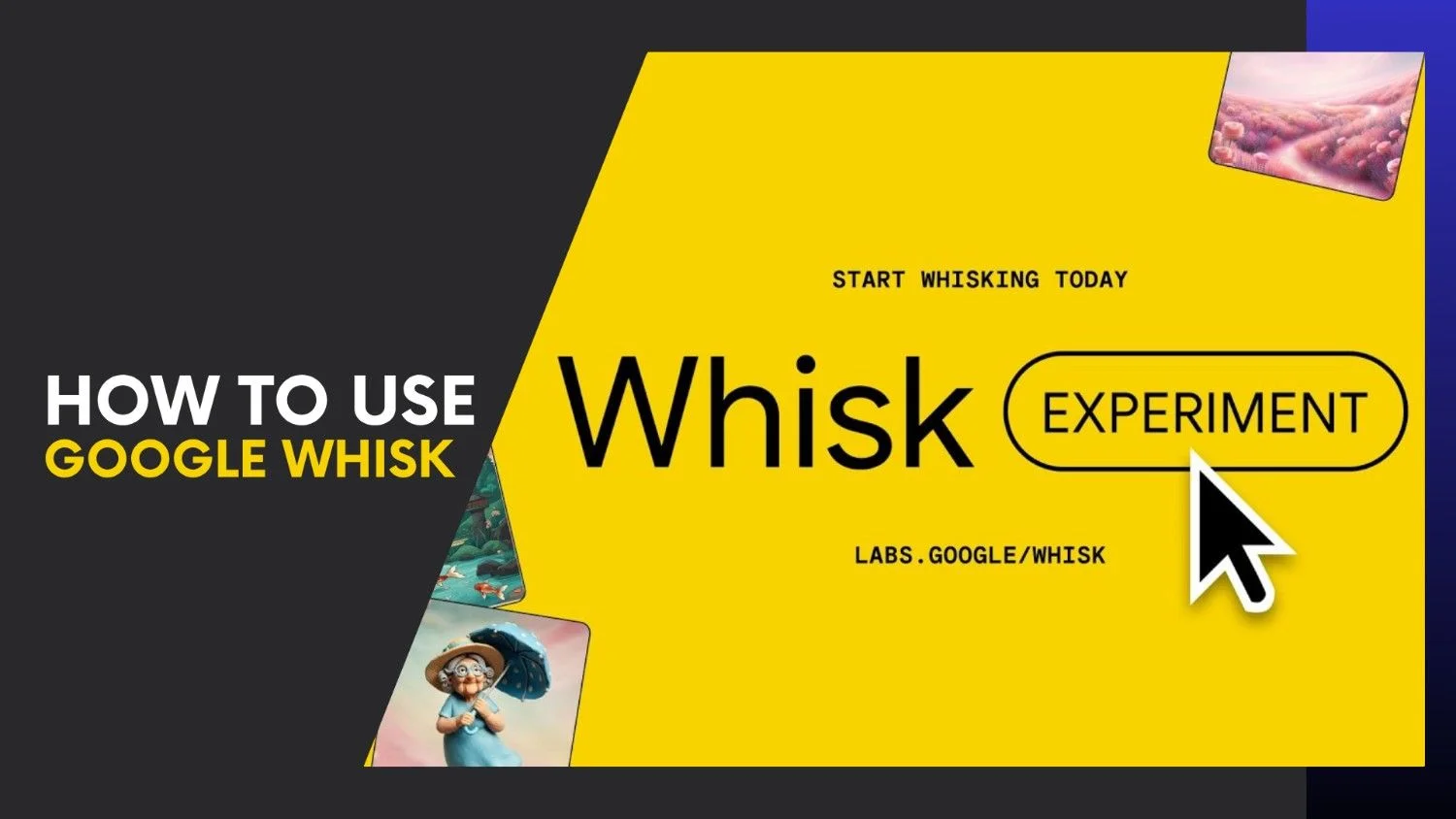
Imagine creating stunning concept images in seconds — not by typing long prompts, but by blending a few pictures together. That’s exactly what Google Whisk does.
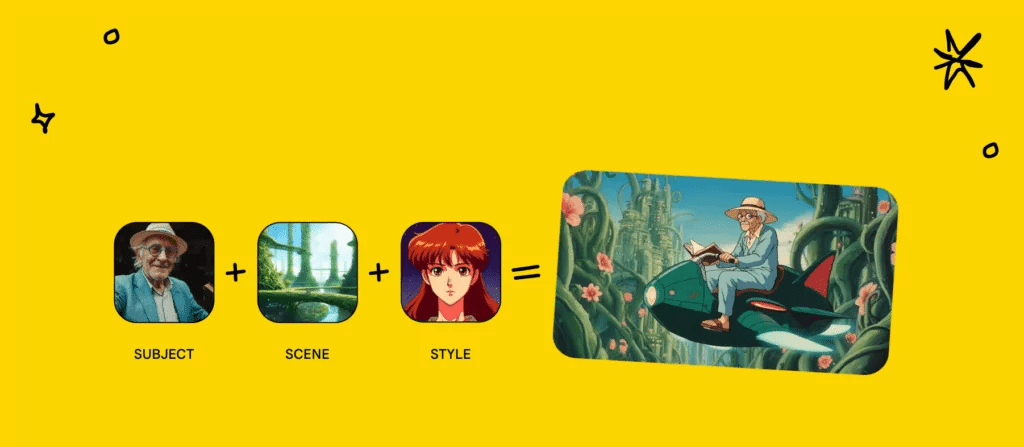
Google Whisk is an experimental AI tool from Google Labs that lets you combine multiple images (and optional text) to generate fresh, realistic visuals. Instead of struggling to craft perfect prompts, you can simply upload a few photos — a subject, a scene, and a style — and let the AI handle the rest.
This guide will walk you through everything you need to know about Google Whisk — from its key app features and AI capabilities to a complete step-by-step tutorial and comparison with Flow. Whether you’re a creator, designer, or marketer, you’ll learn how to use Google Whisk like a pro to unlock next-level creativity and productivity.
What Is Google Whisk?
Google Whisk is a new experimental tool developed under Google Labs, designed to simplify creative workflows through AI-driven image generation. Instead of relying solely on text prompts, it allows users to blend multiple visual elements — such as subjects, styles, and scenes — to produce high-quality, cohesive images.
Think of it as a creative AI mixer: upload a few images, and Google Whisk’s AI intelligently interprets their core elements to produce something entirely new. For example, you could upload a portrait, a landscape, and a color palette — and Whisk will merge them into a consistent, stylized artwork that reflects all three inputs.
What makes Google Whisk stand out is its contextual understanding. Built on Google’s advanced multimodal models (similar to the tech behind Gemini and Imagen), it understands both text and image relationships, allowing it to generate outputs that feel more intentional and realistic.
Key Highlights of Google Whisk
- Visual-first creation: Focuses on combining image inputs, not just text.
- AI assistance: Uses Google Whisk AI for smarter blending and editing suggestions.
- Seamless integration: Ties into other Google tools like Drive and Photos for easier file access.
- User-friendly: Minimal interface designed for fast, intuitive use — perfect for non-designers too.
Google Whisk is Google’s take on making AI creation feel more visual, natural, and fast. It bridges the gap between imagination and execution — whether you’re prototyping a product, designing a campaign, or experimenting with digital art.
Why Google Whisk Matters
AI creativity tools are everywhere — but Google Whisk stands out by making visual creation faster, smarter, and more intuitive. Instead of writing long prompts, you can upload a few images and let AI do the blending for you.
1. The Rise of Visual-First AI Tools
The creative world is shifting from text-based prompts to visual prompting. With its multimodal AI, it understands objects, styles, and emotions, making it easy for anyone — not just designers — to create stunning, cohesive visuals.
2. Powering Speed and Originality
For creators, marketers, and designers, Google Whisk AI is a time-saver. It lets you:
- Generate branded visuals in seconds.
- Experiment with ideas and layouts.
- Create unique designs without complex editing tools.
3. A Glimpse of Google’s AI Future
With Google integrating AI deeper into tools like Gemini and Workspace, Google Whisk could soon become part of your everyday workflow — generating visuals directly inside Docs, Slides, or Drive.
Google Whisk isn’t just another experiment — it’s a preview of how we’ll create visuals in the AI-powered future.
Key Google Whisk App Features You Should Know
Google Whisk combines AI innovation with simplicity, making image creation faster and more intuitive. Here are the standout Google Whisk app features that make it a game-changer in 2025.
1. Visual-First Creation
Unlike traditional prompt-based tools, Google Whisk focuses on visuals. Upload a few images — such as a subject, background, and style — and the AI blends them seamlessly into one cohesive design.
2. AI-Powered Suggestions
With Google Whisk AI, the tool automatically refines your images — offering smart suggestions for color, layout, and lighting adjustments to enhance creativity.
3. Google Workspace Integration
Whisk connects directly with Google Drive, Docs, and Slides, letting you access and manage visuals across all your Google apps without switching platforms.
4. Real-Time Collaboration
Teams can co-edit projects, leave feedback, and update visuals instantly — just like working together on a Google Doc.
5. Fast & Secure Rendering
Thanks to Google’s infrastructure, Google Whisk generates visuals in seconds while maintaining privacy and ethical AI use.
Google Whisk is more than an AI image generator — it’s a collaborative, visual-first workspace built for modern creators.
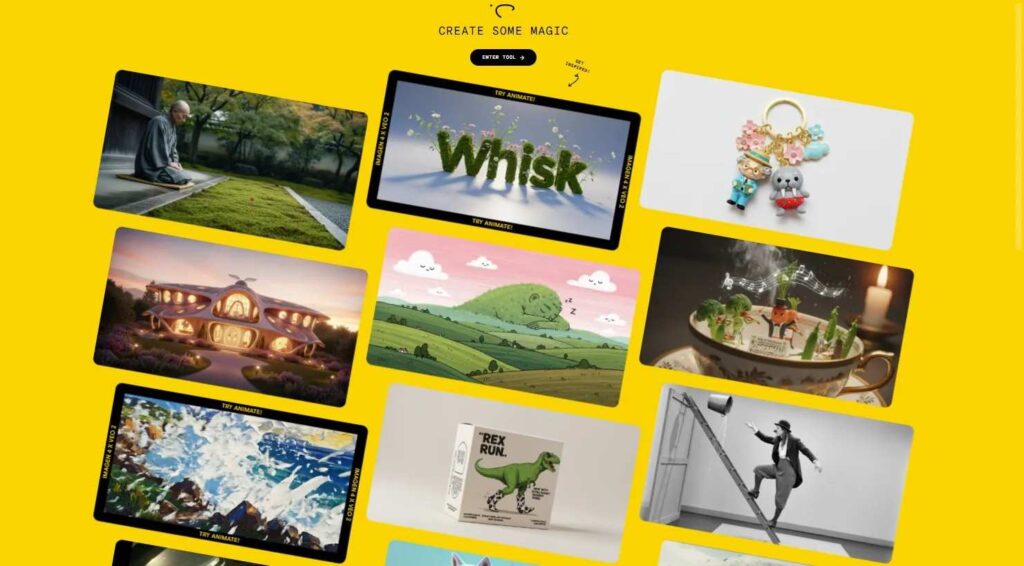
How to Use Google Whisk Like a Pro – Step-by-Step Guide
Getting started with Google Whisk is simple — and once you understand the workflow, it becomes a powerful creative ally. Here’s how to use it effectively, from setup to pro-level tricks.
Step 1: Access Google Whisk via Google Labs
Visit Google Labs and sign in with your Google account. Look for Google Whisk in the available experiments. Since it’s still in testing, access may be limited — so opt in or request early access if prompted.
Tip: Bookmark the Labs page so you can return easily as new Whisk updates roll out.
Step 2: Upload Your Input Images
Once inside Google Whisk, you’ll see options to upload multiple images. Typically, you can add:
- A subject image (the main object or person)
- A scene or background image
- A style or reference image (color tone, lighting, or artistic theme)
Whisk’s AI analyzes these visuals and starts blending them into a unified concept image.
Step 3: Add Optional Text Prompts
Although it’s a visual-first tool, you can enhance control using short text prompts. For instance:
“Blend in cinematic lighting with warm tones.”
The Google Whisk AI will interpret your command and adjust the generated result accordingly — great for fine-tuning atmosphere or style.
Step 4: Review and Refine Outputs
After generation, Whisk displays multiple variations. You can:
- Choose your favorite version.
- Adjust brightness, style, or detail using built-in sliders.
- Ask the AI to regenerate with a different mood or setting.
Each refinement uses contextual understanding, so the AI keeps your original idea intact while improving quality.
Step 5: Save and Share
Once you’re happy with the result, save it directly to Google Drive or download the image. You can also share Whisk links for collaborative feedback — ideal for team projects, design reviews, or client presentations.
Step 6: Experiment Like a Pro
To get the best results with Google Whisk ai, try these expert tips:
- Mix contrasting styles (e.g., photo + sketch) for creative hybrid visuals.
- Keep subject images clean and well-lit for better AI interpretation.
- Use short, descriptive prompts instead of long instructions.
- Explore different aspect ratios for social posts, blog headers, or ad banners.
Pro Insight: Combine Google Whisk with other Google tools like Slides for pitch decks or Sites for landing pages — turning ideas into ready-to-use visuals instantly.
Google Whisk vs Flow: Which One’s Better?
Both Google Whisk and Google Flow are part of Google’s growing suite of AI tools, but they serve different creative purposes. While Google Whisk focuses on visual-first image generation, Flow is more about text-to-image storytelling and AI animation workflows. Understanding their strengths can help you choose the right tool for your needs.
1. Core Purpose
- Google Whisk: Built for users who prefer starting with visuals — blending photos, styles, and AI intelligence to create cohesive imagery.
- Google Flow: Designed for animating ideas and generating story-driven content, often beginning with text prompts or sketches.
If you work with still visuals, Whisk is ideal. For motion and narrative experiments, Flow takes the lead.
2. Interface and Usability
- Whisk: Minimal, intuitive, and built for quick results — perfect for creators, designers, and marketers.
- Flow: Slightly more advanced, offering timeline control, animation layers, and scene transitions for storytelling.
Verdict: Beginners will find Google Whisk easier to navigate, while Flow suits experienced digital artists.
3. AI Capabilities
- Google Whisk AI: Specializes in understanding visual relationships — lighting, texture, depth — and produces highly realistic images.
- Google Flow AI: Focuses on sequencing and animation, making it great for videos, GIFs, or storyboards.
Winner: For static, high-quality visuals, Google Whisk AI wins. For motion-based AI creation, Flow leads.
4. Collaboration and Workflow
Both tools support collaboration, but Whisk integrates more deeply with Google Workspace. You can store visuals in Drive, drop them into Slides or Docs, and share links for instant team feedback.
Flow, on the other hand, leans toward solo projects or creative testing environments within Labs.
5. Use Cases
| Use Case | Google Whisk | Flow |
|---|---|---|
| AI Image Blending | ✅ Excellent | ⚙️ Basic |
| AI Animation | ❌ Not Supported | ✅ Strong |
| Workspace Integration | ✅ Seamless | ⚙️ Limited |
| Team Collaboration | ✅ Yes | ⚙️ Minimal |
| Ease of Use | ✅ Beginner-friendly | ⚙️ Intermediate |
Final Verdict
If your goal is to create stunning still visuals, mockups, or branded images, Google Whisk is your go-to tool. But if you want to turn those ideas into animated stories or dynamic content, Flow will better suit your needs.
In short, both complement each other — with Whisk handling creation and Flow handling motion — giving creators the flexibility to craft, animate, and share AI-generated content effortlessly.
Advanced Tips & Tricks to Master Google Whisk
Once you’ve explored the basics, Google Whisk becomes even more powerful when you start experimenting beyond standard image blends. These advanced tips will help you unlock its full creative potential and make your results stand out.
1. Mix Contrasting Styles for Unique Results
Want that cinematic look or surreal vibe? Try combining drastically different inputs — for example, a real photo as your subject and a watercolor or oil painting as your style reference. Google Whisk AI will intelligently merge the two aesthetics, producing fresh, eye-catching visuals that are impossible to create manually.
2. Use Text Prompts Sparingly but Strategically
While Google Whisk thrives on visual input, short, clear text prompts can help fine-tune results. Phrases like “soft studio lighting” or “minimalist poster style” give the AI more direction without overloading it. Avoid long or complex sentences — brevity leads to better coherence.
3. Refine with the ‘Remix’ Option
Whisk offers a Remix feature that generates alternate versions of your favorite output. This is ideal for exploring variations in tone, color, or mood without starting over. Keep your top picks saved in Drive — they often inspire the next iteration of your project.
4. Build a Consistent Brand Style
For content creators or marketers, consistency is key. Use the same style reference image (like a brand mood board or logo color scheme) across projects. Whisk’s AI will maintain that tone, making your visuals look cohesive across campaigns or social media.
5. Leverage Workspace Integration
Because Google Whisk connects with Google Drive, you can easily organize your creations into folders, drop visuals into Slides for pitch decks, or embed them in Docs. This saves hours of manual uploads and helps keep projects synced across your entire team.
6. Iterate and Save Your Versions
Professional creators often iterate dozens of times before finding the perfect image. Take advantage of Whisk’s instant generation speed to experiment with multiple ideas. Label and store each variation — you may discover hidden gems for future use.
7. Combine with Other AI Tools
For even greater creative control, use Google Whisk alongside other AI design tools. For example:
- Generate base visuals with Whisk.
- Edit details in Canva or Photoshop.
- Animate your finished images in Google Flow or Runway.
This hybrid workflow brings the best of both worlds — visual realism and animation-ready design.
Mastering Google Whisk is about experimentation. The more you mix, test, and iterate, the more you’ll discover its potential to transform static ideas into professional-grade visuals.

Real-World Use Cases of Google Whisk
Google Whisk isn’t just an experimental AI project — it’s already transforming how creators, marketers, and businesses bring ideas to life. Its ability to merge visual inputs and generate polished, ready-to-use results makes it one of the most versatile creative tools in 2025. Here’s how different professionals are using it in the real world.
1. Content Creators and Influencers
For digital creators, time is everything. Google Whisk AI helps influencers design on-brand visuals in minutes — from YouTube thumbnails to Instagram post templates.
- Example: A travel vlogger uploads a landscape photo, a portrait, and a “vintage film” style image. Whisk instantly blends them into a cinematic thumbnail ready for posting.
2. Marketers and Advertisers
Ad agencies and small businesses are using Google Whisk to prototype campaigns without expensive design tools.
- Example: A startup wants three ad variations for social media. Whisk generates multiple polished versions using product photos and brand color references — saving hours of manual editing.
3. Designers and Art Directors
Creative teams use Whisk as a concepting engine. By mixing sketches, color palettes, and reference photos, they can visualize moods, storyboards, and prototypes quickly before final production.
- Example: A designer uploads rough pencil sketches and mood images — Whisk refines them into high-quality mockups for client presentations.
4. Educators and Students
Teachers and students are adopting Google Whisk for visual storytelling, classroom projects, and creative assignments. It helps visualize abstract topics or turn data into engaging graphics without needing design experience.
5. Developers and Product Teams
For UI/UX teams, Whisk can help in rapid prototyping. Developers feed in wireframes or screenshots, and the AI generates cleaner, more polished mockups for usability testing.
6. Bloggers and Journalists
Writers can use Google Whisk AI to create custom visuals, blog headers, or infographics without relying on stock images — boosting originality and engagement on platforms like Google Discover.
Google Whisk bridges the gap between imagination and execution. It empowers anyone — from solo creators to enterprise teams — to turn ideas into professional visuals in minutes.
Troubleshooting Common Issues in Google Whisk
Even though Google Whisk is designed for a smooth, intuitive experience, users may occasionally run into small hiccups — from login errors to AI rendering delays. Don’t worry — most of these issues are easy to fix. Here’s a quick guide to keep your creative flow uninterrupted.
1. Google Whisk Not Loading Properly
If the app or webpage doesn’t load, it’s often due to connectivity or cache problems.
Fix:
- Clear your browser cache and cookies.
- Disable any ad blockers or privacy extensions temporarily.
- Try using Google Chrome or update your current browser.
2. Slow Image Rendering or Output Delays
AI-based rendering can take time depending on image size or server load.
Fix:
- Reduce input file size (under 10MB is ideal).
- Avoid multiple tabs running Whisk simultaneously.
- Use Whisk during non-peak hours for faster processing.
3. “Upload Failed” or “Unsupported Format” Errors
Whisk supports common file types like JPG, PNG, and WEBP.
Fix:
- Check if your file format is supported.
- Rename the file with no special characters or spaces.
- Compress the file or convert it using a free tool like TinyPNG.
4. Blurry or Inaccurate AI Results
Sometimes, the output may look slightly off from what you intended.
Fix:
- Refine your inputs — add clear, well-lit reference images.
- Use text prompts to guide Whisk’s AI interpretation more precisely.
- Compare results by slightly altering input order (e.g., swapping background and reference).
5. Account Login or Access Problems
If you’re using Whisk through Google Workspace or a beta link, account permissions might block access.
Fix:
- Log in with your primary Google account.
- Clear session data or use incognito mode.
- If it’s a closed beta, ensure you’ve received the official invite or access key.
By following these quick solutions, most Google Whisk app issues can be resolved within minutes. Next, let’s look ahead — what’s coming next for Whisk and how Google plans to shape its future in AI creativity.
Google Whisk Availability by Country
Google Whisk has rolled out to more than 100 countries worldwide since its initial launch in the United States. However, the tool’s availability remains limited in some regions.
- Expanded regions: Whisk is now accessible across North America, parts of Asia, and several South American countries.
- Unavailable regions: It’s currently not available in key markets like the UK, the European Union, and India due to regional compliance and testing phases.
- How to confirm: To check if Whisk is available in your region, visit the official Google Labs FAQ page for the most current updates and rollout details.
Conclusion: Mastering Google Whisk Like a Pro
Google Whisk isn’t just another AI tool — it’s the future of digital creativity. Whether you’re a content creator, marketer, designer, or educator, Whisk simplifies complex creative workflows into a few smart clicks. Its powerful AI-driven features, seamless integration with Google’s ecosystem, and intuitive interface make it a must-try for anyone who wants to turn ideas into visuals — fast.
By now, you’ve learned how to use Google Whisk, explored its unique app features, understood how it compares to Google Flow, and seen how professionals are using it to save hours of manual work. With these insights, you’re ready to bring your creative visions to life effortlessly.
As Google continues improving Whisk AI, the possibilities will only expand — from real-time collaboration to deeper personalization. Start experimenting today, and you’ll quickly see why Whisk is poised to become one of the most transformative tools in the AI-powered design world.