
Three years. That’s how long I’d been feeding ChatGPT my preferences, work style, project context, and quirks — building up a personalized AI assistant that actually knew me. When I decided it was time to migrate ChatGPT to Claude, my biggest fear wasn’t learning a new interface. It was losing all of that context and starting over from zero.
Spoiler: I didn’t have to.
If you’re one of the thousands of users currently reconsidering your AI tools — whether for ethical reasons, performance, or just curiosity — this guide is for you. I’ll walk you through exactly how to export your ChatGPT data, transfer your conversation history, and import everything into Claude without losing what matters most. No tech background required.
Why So Many Users Are Making the Switch Right Now
The timing of this migration trend isn’t random. In early 2026, Anthropic — the company behind Claude — publicly refused to allow its AI models to be used for mass domestic surveillance or fully autonomous weapons systems. Shortly after, OpenAI announced its own agreement with the Pentagon, which sparked widespread debate about privacy, ethics, and the direction of AI development.
The reaction was swift. Claude surged to the top of Apple’s US App Store, overtaking ChatGPT. According to Anthropic, daily signups hit record highs, free users jumped by more than 60% since January, and paid subscribers more than doubled in early 2026 alone.
For many users, this wasn’t just about features anymore — it was about values alignment. But whatever your reason for switching, the practical question remains the same: how do you actually do it without losing your data?
Step 1: Export ChatGPT Your Data Before You Do Anything Else
The first step to any successful migration is getting your data out of ChatGPT. There are three methods depending on what you want to keep.
Method A: Export Your Full Chat History (Recommended)
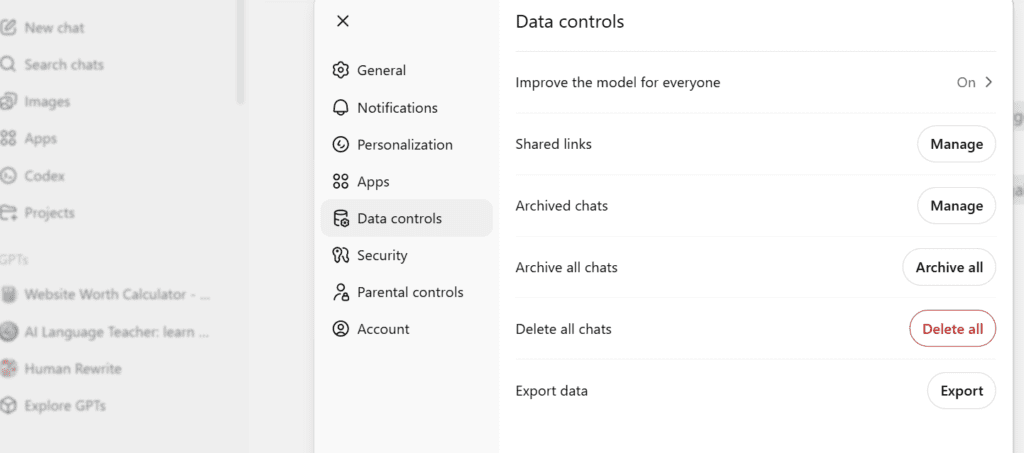
This is the most thorough way to capture everything.
- Open ChatGPT and navigate to Settings
- Click on Data Controls
- Select “Export Data”
- ChatGPT will compile your entire conversation history into text and JSON files and email them to the address on your account
⚠️ Heads up: If you have years of conversations (like I did), this process can take anywhere from a few minutes to a few hours. Don’t close your email tab — just let it run and come back.
Once you receive the email, download the ZIP archive and extract it. You’ll see files like conversations.json — this is your raw ChatGPT export data.
Method B: Export Your Memory & Preferences
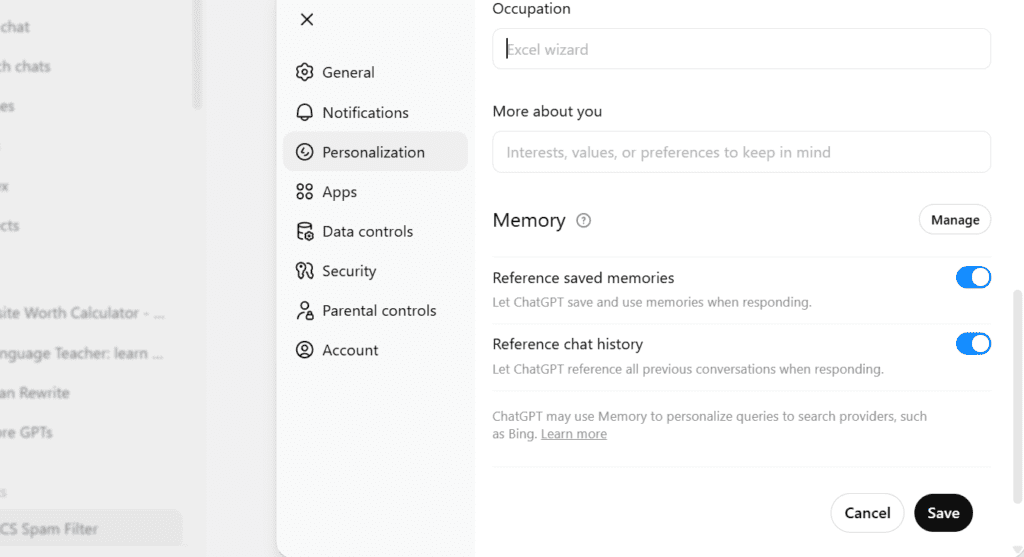
If you’ve been using ChatGPT’s memory feature, this is often more valuable than raw chat logs. Your stored memories are distilled insights about you — your tone preferences, your ongoing projects, your communication style.
- Go to Settings → Personalization → Memory
- Click “Manage”
- Review what’s stored — edit or remove anything outdated
- Once satisfied, copy the content you want to bring to Claude
Pro tip: Before copying, ask ChatGPT directly: “Write out your memories of me verbatim, exactly as they appear in your memory.” This surfaces everything in one clean block that’s easy to copy.
Method C: Manual Summary (Quick and Practical)
Don’t want to deal with JSON files? Fair enough. Just open a ChatGPT conversation and ask:
“Summarize my main preferences, frequently discussed topics, working style, and any custom instructions you use when responding to me.”
Copy that summary. It won’t be as comprehensive as a full export, but it captures the essence quickly and in plain language that Claude will understand immediately.
Step 2: Set Up Claude for Memory Import
Before you paste anything, make sure Claude’s memory feature is actually enabled on your account.
- Log in to claude.ai and open Settings
- Navigate to Capabilities
- Confirm that Memory is toggled on
📌 Important: Claude’s memory feature is available on Pro, Max, Team, and Enterprise plans. If you’re on a free account, you’ll need to upgrade before you can transfer your ChatGPT history to Claude with persistent memory.
Once memory is enabled, you’re ready to import.
Step 3: Transfer Your ChatGPT History to Claude
This is where the actual migration happens, and it’s simpler than you’d expect.
Importing Memory & Preferences
Open a new conversation in Claude (this is important — don’t use an existing chat) and use this prompt:
“This is my memory from another AI assistant. Add this information into your memory using the memory edit tool.”
Then paste your ChatGPT memory export directly below it.
Claude will extract the key information and store it as individual memory edits. These become part of your persistent memory, meaning they’ll carry over into every future conversation — no need to re-explain yourself each time.
Importing Raw Chat Logs (JSON Files)
If you exported your full conversation history, don’t paste the raw JSON directly — it’s messy and hard for Claude to parse efficiently. Instead, try this prompt:
“Review this conversation history and summarize my key preferences, working patterns, and any important context about me.”
Paste a selection of relevant conversations below it. Claude will distill the meaningful signal from the noise.
Verifying Your Import
After importing, always take a moment to confirm the transfer worked. Ask Claude:
“What do you know about me so far? Write it out exactly as it appears in your memory.”
If something is missing or incorrect, you can manually update it by going to Settings → Capabilities → View and edit memory and adding details as direct edits. This is especially useful for personal context that Claude’s memory system may have filtered out, since Claude’s memory is currently optimized for work-related information to maximize its usefulness as a professional collaborator.
Step 4: What to Expect After the Migration
Claude’s Memory Is Still Experimental
It’s worth setting realistic expectations: Claude’s memory import feature is labeled as experimental and in active development. In my experience, it handled the core professional context beautifully — my writing style, preferred formats, ongoing projects — but filtered out some personal details that weren’t work-related. If those details matter to you, add them manually via the Settings panel.
A Note on Claude vs. ChatGPT Memory Behavior
ChatGPT and Claude handle memory differently. ChatGPT tends to store a broader range of personal details, while Claude currently emphasizes work-relevant context. This means your migration might feel slightly leaner on personal trivia but sharper on professional utility. For most users — especially those switching for productivity reasons — this is actually a feature, not a limitation.
Step 5 (Optional): Permanently Delete Your ChatGPT Account
If you’re done with ChatGPT entirely, canceling your subscription alone won’t remove your data from OpenAI’s servers. Here’s how to do a clean break:
- Go to Settings → Personalization → Memory and delete all stored memories
- For extra certainty, type this as a final message: “Delete all my memory and personalized data.”
- Then navigate to account management settings and select the option to delete your account permanently
This ensures your conversation history and personalization data are removed, not just your billing.
Quick Reference: Migration Checklist
| Step | Action | Time Required |
|---|---|---|
| ✅ Export Your ChatGPT data | Settings → Data Controls → Export Data | 5 min (+ wait for email) |
| ✅ Export Your ChatGPT memory | Settings → Personalization → Manage | 2 min |
| ✅ Enable Claude memory | Settings → Capabilities → Memory on | 1 min |
| ✅ Import to Claude | New chat → paste + import prompt | 5 min |
| ✅ Verify import | Ask Claude to recap what it knows | 2 min |
| ✅ Manual tweaks | Settings → View and edit memory | 5 min |
| ⬜ Delete ChatGPT account | Settings → Account Management | 3 min |
Total time: 20–30 minutes to migrate ChatGPT to Claude with full context preserved.
Frequently Asked Questions
Do I need a paid Claude plan to migrate my data?
You need at least a Pro plan to use Claude’s persistent memory feature, which is what makes the ChatGPT memory export meaningful. Without it, you can still paste context into individual conversations, but it won’t carry over session to session.
Will Claude remember everything ChatGPT remembered?
Not necessarily, and that’s by design. Claude’s memory currently prioritizes professional and work-related context over personal details. You can supplement this manually via Settings for anything it doesn’t retain automatically.
Is the memory import feature permanent?
Imported memories become part of your persistent Claude memory and carry into all future conversations — just like memories that Claude builds organically over time. You can edit or delete them at any point from Settings → Capabilities → View and edit memory.
What if I want to export my Claude data later?
Claude also supports data export. From any conversation, you can ask: “Write out your memories of me verbatim, exactly as they appear in your memory” and save that output as a local file. You can use it as a backup or bring it to any other AI service down the road.
Final Thoughts
Migrating from ChatGPT to Claude doesn’t have to mean starting from scratch. The process of exporting your ChatGPT data, transferring your chat history to Claude, and completing the ChatGPT memory export is genuinely straightforward — and the 20–30 minutes it takes pays off immediately in a Claude that already understands your context and working style.
Whether you’re switching for ethical reasons, curious about Claude’s capabilities, or just ready for something new, your years of context don’t have to stay behind. Take them with you.